

For Thanksgiving week we thought we would do some content around command-line workflows. To that end, I'd like to show off a few basic CLI tools, how I use them, and how unix tools play nicely together via pipes. Let's get started.
Project
ps
The first command we'll look at is
ps
. If you don't know what
ps
does or
want to review the options available to you, you should check out
its man
page
.
man psWe can see that the utility's name stands for Process Status . By default it just shows your user's processes:
ps
For the next step, I'm going to open a few files in
neovim
:
# one in each terminal
vim 1
vim 2
vim 3
If we want to see just the processes running
neovim
we can pipe this output to
grep
, searching for lines that contain
nvim
:
ps | grep 'nvim'
This is a little better, but here we can see that incidental processes are also
showing up because they contain the characters
nvim
in their full command
line, even if that's not the executable the process is running. We can't do much
better than this with grep, but we can start to see how we could. First, let's
modify the fields that
ps
returns:
ps -o pid,comm,argsHere we're just outputting a column for each of the pid, the raw command that was run, and the command plus arguments.
Let's move on to the next tool to see how we could filter this list:
awk
awk
is listed in
its man page
as
a
pattern scanning and processing language
. In general, I use it to turn
tabular data into structured data that I can filter or format or otherwise
manipulate.
Let's first use it to print our PIDs just on their own, by capturing the first
column of
ps
's output:
ps -o pid,comm,args | awk '{print $1}'
That's a nice start, but we're also capturing the header field as a value. Let's
omit the first row. We can use the value
NR
to stand for the number of the row
we're on.
ps -o pid,comm,args | awk 'NR > 0 {print $1}'
Oops, it's still there.
awk
rows start at row 1, just to mix things up a bit.
ps -o pid,comm,args | awk 'NR > 1 {print $1}'There we go.
Next, let's include the command:
ps -o pid,comm,args | awk 'NR > 1 {print $1, $2}'That's...beautiful. But it works. We can also just print out the line as it is, rather than specifying the columns to print:
ps -o pid,comm,args | awk 'NR > 1 {print}'
This is useful if we want to eventually pipe it without translation into a later
usage of
awk
, for instance.
Next, we can filter out lines if the command isn't
nvim
:
ps -o pid,comm,args | awk '{ if ($2 == "nvim") {print} }'
That's showing us all of my
nvim
instances, nice. It would be nice if we could
get the arguments for
nvim
on their own, without the duplicated command name.
We can, of course, by just using the extra field that will have been created by
the space after
nvim
:
ps -o pid,comm,args | awk '{ if ($2 == "nvim") {printf "%s is being run on %s in pid %s\n", $2, $4, $1} }'And finally, if we wanted to add user information that's easy as well:
ps -o pid,user,comm,args | awk '{ if ($3 == "nvim") {printf "%s is being run on %s in pid %s by user %s\n", $3, $5, $1, $2} }'
awk
is way more useful than this, but it seemed like a good way to get a quick
and dirty intro to it.
htop
Next, I just wanted to give a shout-out to
htop
.
It's an
interactive process viewer
and I use it instead of
top
on any
machine I happen to be using.
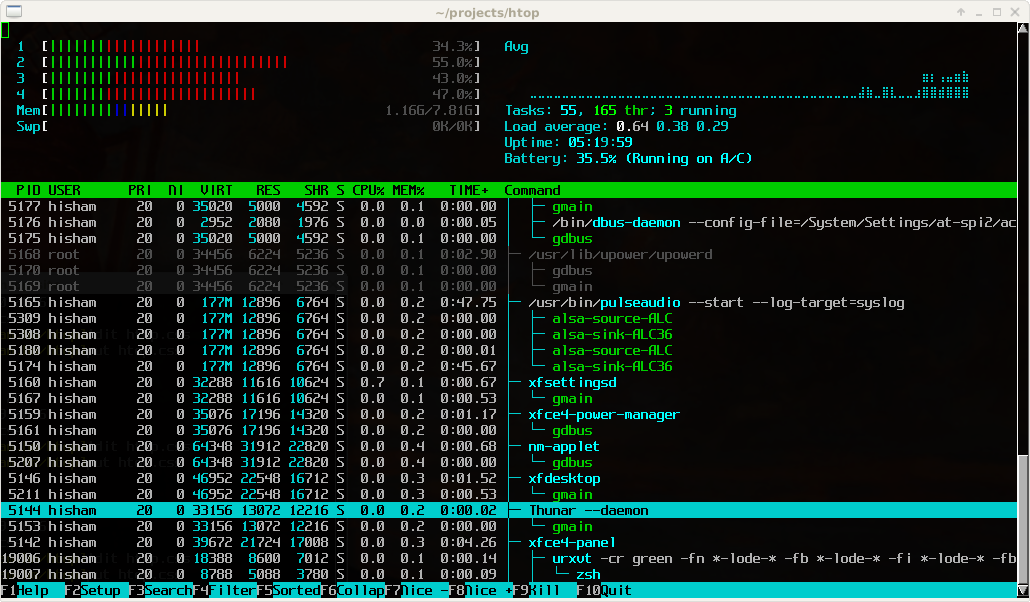
htop
Here it's showing me my CPU and memory usage, and a list of processes that are
running. There are interactive commands from here. For instance, to filter to
nvim
instances I can press
F4
and then type
nvim
. I can also press
F5
to
see the process tree, which will show child processes nicely.
From here you can also modify a process's "nice" value, which can help you tweak the priority a given process receives from the scheduler. A lower nice means more priority is given to that process.
jq
Finally, I really like
jq
for interacting
with JSON data.
There's a great
tutorial
for
jq
.
I'll go through part of it to show the tool off.
First, you need to have some JSON data to work with. We'll grab the most recent
commits to the
jq
repository on GitHub.
curl 'https://api.github.com/repos/stedolan/jq/commits?per_page=5'
That's a mess of text in our console. We can pipe it through
jq
to pretty
print it, for starters:
curl 'https://api.github.com/repos/stedolan/jq/commits?per_page=5' | jq .
Here we're giving the argument
.
to
jq
. That's our filter, and it
basically means "select everything."
OK, so what does this get us? Well, in this case, it just colorized the output
seemingly, but even just this I use as my JSON pretty printer. If I have a chunk
of JSON I want to look nice, I'll pipe it through
jq .
- I do this from
vim
all the time.
Here's an example:
vim fooThen read in the JSON data with:
:r https://api.github.com/repos/stedolan/jq/commits?per_page=5It comes from github pretty, but we can mangle it by removing all whitespace on each line:
:%s/\s//g
Now we can go from this mangled json to pretty json by piping it through
jq .
inside of
vim
. We'll select it all with
ggVG
, then pipe it through
jq
:
:!jq .Now it's formatted nicely!
But
jq
can do so much more. Let's say we just want to see the authors for the
last five commits:
curl 'https://api.github.com/repos/stedolan/jq/commits?per_page=5' | jq '.[] | { author: .commit.author.name }'Here we're saying "we got data as an array and would like to feed each, one at a time, through a mapping function that returns new json containing just the commit's author's name".
Let's add the commit message as well:
curl 'https://api.github.com/repos/stedolan/jq/commits?per_page=5' | jq '.[] | { author: .commit.author.name, message: .commit.message }'
One thing here -
jq
produces streams of JSON values. You'll notice that this
isn't outputting an array of our json. We can change the output by collecting
each of these into an array:
curl 'https://api.github.com/repos/stedolan/jq/commits?per_page=5' | jq '[.[] | { author: .commit.author.name, message: .commit.message }]'
Again, you can do a lot more with
jq
but this should at least get you
interested if you've never heard of it.
Summary
In today's episode I showed off a variety of command-line tools that I use regularly. I know there are always tricks that one person's learned that aren't widely distributed, and these are a few of mine. I'd love to hear about yours, so just leave a comment. See you soon!
Comments for Great Command-Line Tools, Part 1